Build an enterprise-grade AI image bot for employees (with RunPod.io Serverless + n8n)
Chapter 1:
What You’re Actually Building, Who It’s For, and Why HubSpot Is the Natural Home
There is a quiet moment in most growing companies when someone asks for “just a quick visual.”
It shows up in Slack.
It lands in HubSpot notes.
It appears five minutes before a campaign goes live.
And almost always, it triggers the same inefficient chain reaction: a designer ping, a Canva link, a half-working AI prompt, a logo pasted in the wrong corner, and a final asset that is “good enough” but never quite right.
This is not a creativity problem.
It is a systems problem.
The daily reality inside HubSpot-driven teams
In medium and large SMB organizations running on HubSpot, image generation is already everywhere.
-
Marketing teams create blog headers, social visuals, and ad creatives.
-
HR teams need hiring visuals and employer branding assets.
-
Sales teams want fast visuals for outbound, decks, and one-pagers.
-
Customer success teams need images for help centers and onboarding.
Everyone is producing images.
Everyone is using different tools.
No one is enforcing consistency.
Brand guidelines exist, but mostly as PDFs.
AI tools exist, but mostly as one-off experiments.
What’s missing is an internal system that turns image generation into a repeatable, governed workflow.
What you are building, in concrete terms
You are not building an “AI image tool.”
You are building an internal image factory.
From the employee’s perspective, it looks almost boring:
-
Open an internal page (intranet or HubSpot private content).
-
Select a template:
-
Blog header
-
LinkedIn post
-
Hiring announcement
-
Ad creative
-
-
Enter a short description.
-
Click Generate.
-
Download a fully branded image.
No model selection.
No prompt engineering.
No design decisions.
Everything that normally introduces friction has been decided in advance.
Why HubSpot is the right place for this
HubSpot is not just a marketing platform. It is the operational backbone for many SMB and large SMB organizations.
That matters.
-
Marketing lives in HubSpot.
-
HR publishes from HubSpot.
-
Sales operates inside HubSpot.
-
Private content, user permissions, and SSO are already there.
This makes HubSpot the natural distribution layer for internal AI tools. You are not asking teams to adopt something new. You are embedding a capability into the environment they already use.
Using HubSpot data to generate personalized images at scale
Because this image workflow sits next to HubSpot, it can use the same data that already powers your campaigns. Company name, industry, lifecycle stage, region, or campaign context can be injected into the prompt automatically. That makes it possible to generate personalized images at scale, for example industry-specific visuals for outbound campaigns, custom images per segment in email marketing, or tailored ad creatives aligned with lifecycle stages, without rewriting prompts or redesigning assets each time. The brand, layout, and style remain fixed, but the content adapts dynamically, turning image generation into a natural extension of HubSpot-driven personalization rather than a manual creative task.
.
Enabling user-generated content at scale with CRM-driven image creation
This workflow becomes especially powerful for user-generated content across Instagram, TikTok, Facebook, LinkedIn, and blog posts, where volume and speed matter more than one-off perfection. By connecting image generation directly to HubSpot CRM data, employees can produce large amounts of on-brand visuals that reflect real customer context, industries, regions, or use cases, without manually rewriting prompts or redesigning assets.
Marketing teams can generate social visuals aligned with campaigns, employees can create content for personal LinkedIn posts, and blog teams can enrich articles with consistent imagery, all driven by structured data rather than creative guesswork.
While the same system can later be extended to video and text generation, starting with images already unlocks a cost-effective way to scale authentic, employee-driven content without losing brand control.
That is how internal tools actually get adopted.
Internal workflows first, public experiences second
While this system is primarily designed to support internal workflows, the same image generation setup can also be exposed on a website as a controlled, interactive experience.
Companies can use it as a lightweight lead magnet, a product demo, or a sandbox where prospects can generate sample images and explore what is possible, without touching internal data or production workflows. The core value remains internal efficiency and scale, but the ability to reuse the same technology for public-facing experiments or customer engagement adds flexibility without additional infrastructure or complexity.
Why this saves real time, not theoretical time
The biggest efficiency gain does not come from faster image generation.
It comes from eliminating decisions.
Without a system:
-
People choose tools.
-
People invent prompts.
-
People experiment.
-
People forget brand rules.
-
People redo work.
With a fixed workflow:
-
Prompts are guided.
-
Styles are locked.
-
Brand overlays are automatic.
-
Outputs are consistently usable.
You trade creative freedom for operational speed. For internal teams, that trade-off is usually welcome.
The biggest time saver is not the automation itself, but the ability for marketing and subject-matter specialists to embed their knowledge directly into the workflow of every individual employee.
Instead of each person inventing prompts and interpreting brand rules on their own, the organization encodes its expertise, customer data, and brand decisions once, and lets everyone benefit from it automatically.
This creates alignment by design, improves brand safety, and ensures that all generated materials follow the same logic, whether they are images today or video and text tomorrow.
What you are really building are AI workflows that capture how the company thinks, with leadership acting as the orchestrator of that intelligence rather than trying to control every output.
Instead of trying to control or fix outputs after they are generated, this approach focuses on controlling the input before the AI ever runs. By guaranteeing that high-quality prompts, brand context, and customer data are consistently fed into the system, you reduce both time and cost while improving output quality by default. Today, most organizations are fragmenting their AI efforts, with every employee adopting different tools, building isolated workflows, and creating disconnected pockets of automation. A centralized AI workflow reverses that dynamic by routing all usage through a shared engine, allowing knowledge, patterns, and improvements to accumulate over time.
The long-term direction is not manual control, but self-learning workflows, continuously refined by AI orchestrators who shape how the system thinks rather than policing what it produces.
One workflow, many teams
This is not a marketing-only solution.
The same internal image workflow supports:
-
SEO teams producing large volumes of blog imagery,
-
performance marketers testing ad variations,
-
HR teams maintaining consistent employer branding,
-
sales teams creating visuals without design dependencies.
The power does not come from the model.
It comes from templates, constraints, and governance.
And that is exactly what this architecture is designed to provide.
We should be honest about where this is going. Marketing teams are getting smaller, not larger, and individual employees are expected to produce dramatically more output than before. That shift only works if those employees are supported by strong internal AI workflows that encode company knowledge, brand context, and customer insight by default.
You cannot achieve this by buying disconnected external tools or letting people experiment in isolated AI image generators and chat interfaces. That approach creates fragmentation, risk, and exhaustion. The only sustainable path is to give the new AI-orchestrating employee a system that is trained on the company, aligned with the brand, and designed to scale output safely.
When the workflow carries the intelligence, employees can focus on intent and judgment, and confidently produce large volumes of content without fear of breaking consistency or quality.
Chapter 1 Checklist
At this point, you should be clear on:
-
Who this is for: one person marketing teams. small teams SMB and large SMB teams
-
What you’re building: an internal, governed image (or other ai tool) workflow
-
Where it lives: intranet or own environment but can be used as a lead magnet for prospects and customers
-
Why it works: fixed systems outperform ad-hoc creativity
Next up, we get concrete.
Chapter 2
Setting Up RunPod: From Account Creation to a Production-Ready Serverless Image Endpoint
Most AI infrastructure problems do not come from bad models.
They come from poorly thought-out defaults.
In this chapter, you will set up RunPod.io in a way that is boring, predictable, and reliable. That is exactly what you want for an internal enterprise workflow.
Step 1: Create a RunPod account with production in mind
Start by creating a RunPod account. This takes minutes, but the choices you make here matter later.
-
Complete billing setup immediately. Serverless endpoints without billing are demos, not systems.
-
Use a shared team email or organization account if possible, not a personal one.
-
Decide early who owns this infrastructure: marketing ops, RevOps, or IT. Ambiguity here creates security debt later.
Once logged in, navigate to API Keys.
Create a new API key and label it clearly, for example:runpod-api-key
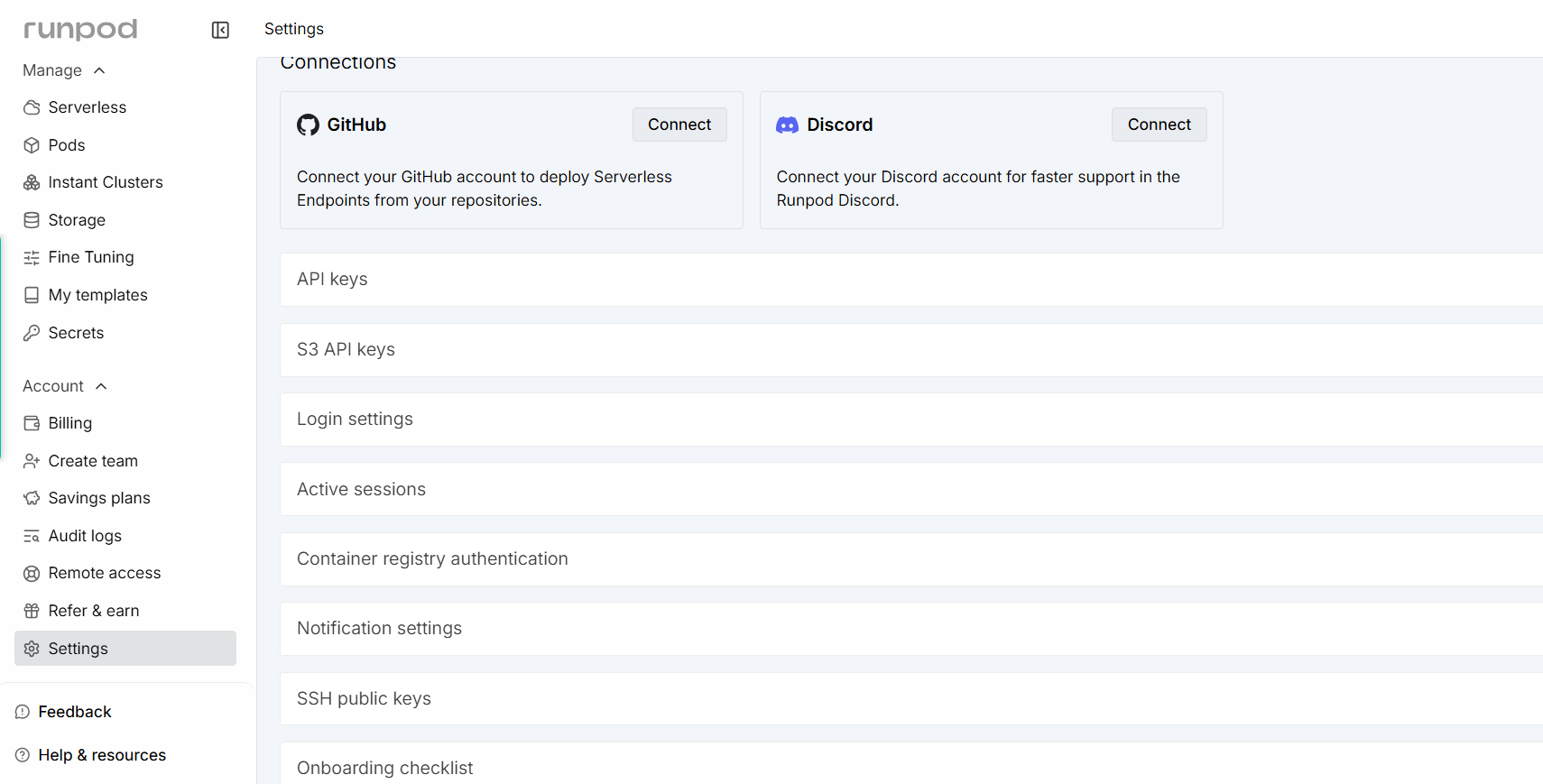
Store this key in a secure secrets manager or directly in n8n credentials. Do not hardcode it into workflows. Assume it will be rotated.
This one api key lets you connect to all services on Runpod, so you do not need an API key for every single server or pod.
Step 2: Understand what “serverless” actually means here
RunPod Serverless does not mean “no servers exist.” It means you do not manage them.
You submit a job.
A worker spins up if needed.
The job runs.
The worker disappears.
RunPod Serverless does not mean that servers do not exist, it means you are no longer responsible for keeping one running. In a traditional pod or port-based setup, you deploy a GPU server that is always online, listening on a fixed port, consuming resources and cost whether it is used or not. In a serverless setup, there is no permanent process waiting for traffic. You submit a job, a worker is started only if needed, the image is generated, and the worker is shut down again.
This model fits image generation well because workloads are irregular, images do not require long-lived state, and cost scales directly with usage.
As a rule of thumb, if your usage is bursty and unpredictable, serverless is the right default, and dedicated pods only make sense when you have constant, high-volume demand.
The trade-off is cold starts, but for internal workflows this is usually acceptable, and a few extra seconds per request are far cheaper than paying for idle GPUs around the clock.
For image generation, this model works well because:
-
workloads are bursty,
-
images do not require long-lived state,
-
and you only pay for execution time.
The trade-off is cold starts. For internal tools, this is acceptable. A few extra seconds are cheaper than idle GPUs.
Step 3: Choose the right image model (control beats novelty)
The temptation is to chase the newest model. Resist it.
For enterprise use, the priorities are:
-
consistency,
-
controllability,
-
predictable output quality.
On the RunPod serverless hub, you can choose from a wide range of models across image, text, video, and audio generation, depending on what you want to build.A practical way to approach this is to copy the available model information and evaluate it with an LLM of your choice, whether that is ChatGPT, Gemini, Grok, or another assistant, and let it help you map your specific use case to the most suitable model.
This is not about picking the “best” model in general, but the right one for your workflow, quality requirements, and latency expectations. RunPod also provides clear cost indicators per model, which is essential, because model choice directly impacts both performance and long-term cost efficiency.
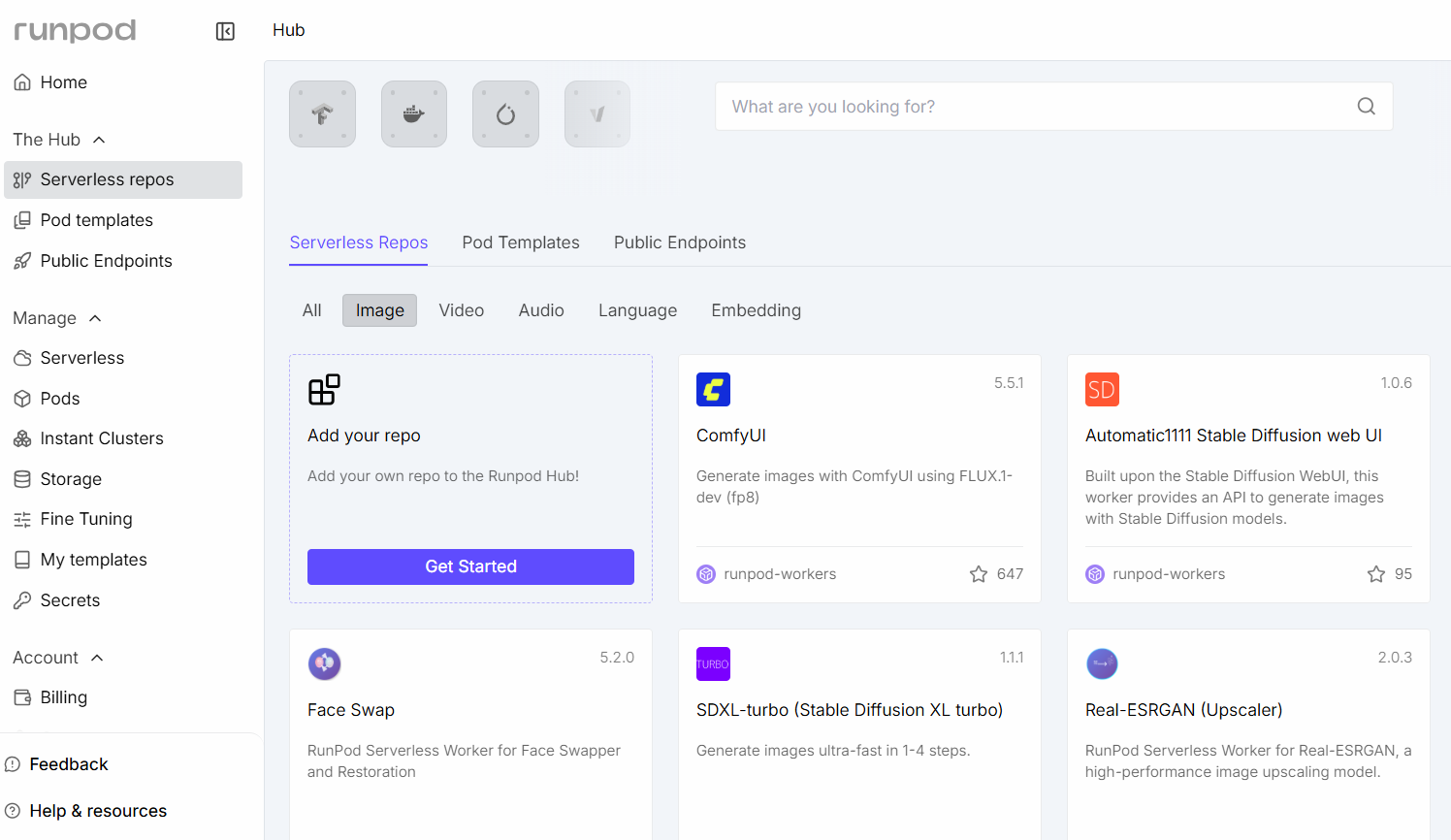
In this setup, you are not calling a black-box text-to-image API, but running a diffusion-based image model through a structured ComfyUI workflow.
ComfyUI acts as the orchestration layer, allowing you to explicitly control how the model is executed instead of relying on hidden defaults.
This matters because it lets you fix resolution, sampling method, number of steps, negative prompts, and seed behavior in a transparent and repeatable way, which is essential for consistency, cost control, and predictable output at scale:
-
resolution,
-
sampling method,
-
number of steps,
-
negative prompts,
-
and seed behavior.
Choose a model that:
-
performs well at your standard resolution (for example 1024×1024),
-
handles typography reasonably,
-
and does not aggressively stylize outputs unless prompted.
You are building a factory, not an art studio.
Step 4: Create a serverless endpoint
In RunPod, create a new Serverless Endpoint.
Key decisions here:
Endpoint type
-
Use a serverless image generation worker, not a general-purpose container.
-
Ensure it supports the workflow format you plan to submit.
Concurrency
-
Start conservative. One or two concurrent workers is often enough for internal teams.
-
Scale later based on usage, not assumptions.
Timeouts
-
Set realistic timeouts. Image generation should not run indefinitely.
-
If a job fails, your workflow should handle it gracefully.
Once deployed, RunPod will give you an endpoint ID. Your API calls will look like:
-
Submit job:
/run -
Check status:
/status/{job_id}
This polling model is intentional. It keeps your automation logic explicit and auditable.
RunPod Serverless endpoint page: what you’re looking at, and what you actually need
Once your Serverless endpoint is live (for example a ComfyUI 5.5.1 queue-based endpoint), RunPod gives you a dashboard with a few tabs that matter for operating this like a real system: Overview, Metrics, Logs, Requests, Workers, and Releases. The one thing you absolutely need for your n8n workflow is the Endpoint ID, because your API calls are built from it (submit jobs to /run, then poll /status/{id}), and every request must include your API key as a Bearer token in the Authorization header. On the Overview page you’ll also see a copy-paste curl example, which is useful for smoke-testing your endpoint before wiring n8n. After you start sending traffic, the key operational signal is whether the endpoint is behaving under load, which you validate using the tabs below.
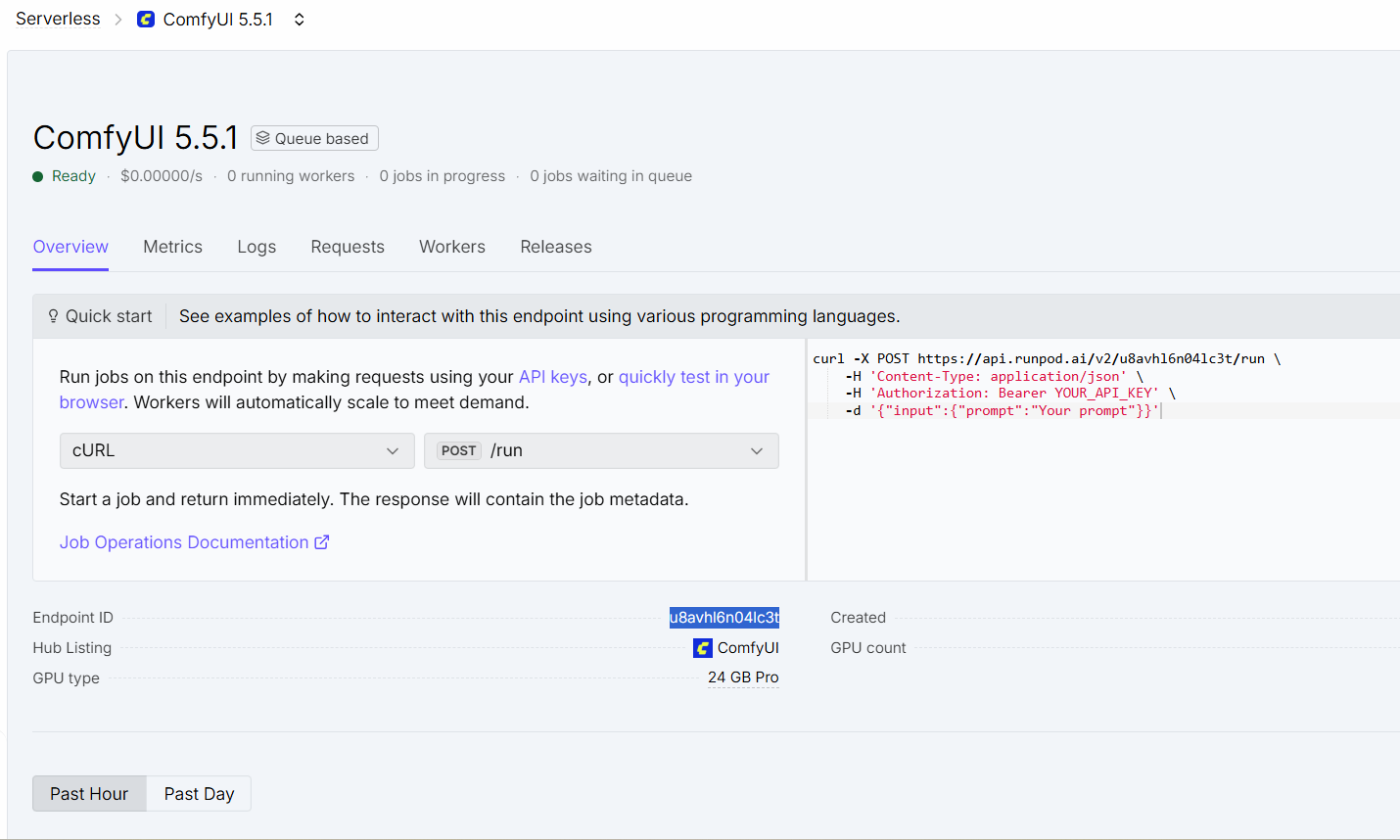
What each tab is for (and why you should care)
1) Overview (quick start + identity)
-
Confirms the endpoint is Ready (or not).
-
Shows whether it’s queue based, which means requests become jobs and workers process them.
-
Shows your Endpoint ID (the critical value you paste into n8n).
-
Gives you the “hello world” request format (great for testing).
2) Metrics (the “is this healthy?” dashboard)
This is the most important tab once people start using it.
Look for:
-
Request volume rising when users click Generate.
-
Queue length / waiting jobs (if it grows, you are under-provisioned or model is slow).
-
Latency / job duration trends (if it spikes, something changed: model, steps, resolution, cold starts).
-
Worker activity (workers should scale up when demand increases, then scale down).
This is where you spot problems before your employees do.
3) Requests (what is happening right now)
-
Shows the individual jobs hitting your endpoint.
-
Useful for debugging “this request failed” or “why is it slow?”
-
Lets you correlate a spike in usage with errors or timeouts.
4) Workers (how many are running, scaling behavior)
-
Shows how many workers are currently active and whether workers are scaling with demand.
-
When demand is low, workers may be at zero (serverless behavior).
-
When demand rises, workers spin up to process the queue.
Important nuance: you’re not “sharing workers with the world,” but you are sharing capacity dynamics with your own usage patterns, and any team hammering the endpoint will impact queue time unless you tune concurrency.
5) Logs (why did it fail?)
-
Where you go when jobs error out.
-
If you change models, workflows, or dependencies, this is your first stop.
-
Logs are also how you confirm whether failures are input-related (bad workflow JSON) or infrastructure-related.
6) Releases (what version is deployed)
-
Tracks what’s running.
-
If something breaks after a change, this is how you confirm what actually shipped.
What n8n needs from this page (minimum required)
For the n8n workflow, you only need two things:
-
Endpoint ID
-
API key (used as
Authorization: Bearer <YOUR_API_KEY>)
With that, n8n can:
-
POST to
https://api.runpod.ai/v2/<ENDPOINT_ID>/run -
GET
https://api.runpod.ai/v2/<ENDPOINT_ID>/status/<JOB_ID>
Everything else on the dashboard helps you operate and optimize, but those two values are the keys that unlock the whole workflow.
Step 5: Apply basic production hygiene
Before you touch n8n, pause and lock down the basics.
-
Restrict API key access to n8n only.
-
Document which endpoint is production and which is for testing.
-
Decide where logs live and how long you keep them.
-
Agree internally what data is stored, if any, and for how long.
This is not bureaucracy. This is how you avoid uncomfortable questions later.
Step 6: Cost awareness from day one
Serverless pricing is simple, but only if you understand what drives it.
Your main cost levers are:
-
image resolution,
-
number of sampling steps,
-
number of variations per request,
-
and retry behavior.
Start with:
-
one image per request,
-
a fixed resolution,
-
and no automatic retries.
You can always add variations later.
Cost discipline is much harder to retrofit than features.
Chapter 2 checklist
By the end of this chapter, you should have:
-
A RunPod account with billing enabled
-
A named, stored API key
-
A deployed serverless image generation endpoint
-
Clear defaults for resolution and quality
-
A basic cost and ownership model
Next, we move from infrastructure to orchestration.
Chapter 3
Hosting n8n in Practice: When to Self-Host and When to Use n8n Cloud
Choosing Between n8n Cloud and Self-Hosting (and When Each Makes Sense)
Before talking about servers, Docker, or Hostinger, it’s important to make one thing clear: there is no single “correct” way to run n8n. The right setup depends entirely on your team size, technical maturity, and how critical the workflows are to your business.
When n8n Cloud is the better option
If you are:
-
a small team,
-
just starting with automation,
-
experimenting with AI workflows,
-
or do not want to manage infrastructure,
then n8n Cloud is almost always the best choice.
n8n Cloud gives you:
-
instant setup,
-
no server maintenance,
-
built-in updates,
-
predictable monthly pricing,
-
and a very low barrier to entry.
For early-stage teams or solo operators, this is often the fastest way to validate workflows and prove value. You trade some control and flexibility for speed and convenience, which is usually the right trade-off at this stage.
If your image workflows are still experimental, volume is low, and governance requirements are minimal, n8n Cloud is perfectly fine.
When self-hosting n8n becomes the better choice
Self-hosting starts to make sense when n8n moves from “tool” to infrastructure.
This typically happens when:
-
workflows become business-critical,
-
you integrate deeply with internal systems (CRM, data warehouses, internal APIs),
-
you need tighter security or network control,
-
or AI usage volume increases significantly.
For SMBs and large SMBs, especially those building internal AI workflows connected to HubSpot, self-hosting offers clear advantages:
-
full control over webhooks and access,
-
no per-execution pricing surprises,
-
easier integration with private services,
-
better observability and governance.
In short: when n8n becomes part of how your company operates, not just how it experiments, self-hosting is usually the better long-term move.
Quick Cost Comparison (Real Current Numbers)
To decide between n8n Cloud and self-hosting, it helps to compare real dollar figures rather than concepts.
n8n Cloud pricing (official managed hosting):
• Starter plans typically begin around $20/month for light usage, with higher tiers (Pro/Enterprise) up to $50+/month depending on workflow volume, execution limits, log retention, and usage tiers.
Cloud plans include:
-
hosted infrastructure,
-
automatic updates,
-
backups,
-
managed uptime and scaling.
That convenience comes at a premium.
Self-hosting on Hostinger VPS (self-managed):
• Hostinger’s n8n VPS plans start at about $4.99/month for a basic setup (1 vCPU, 4 GB RAM, 50 GB storage, 4 TB bandwidth).
• A more capable plan, recommended for production automations, is around $6.99/month (2 vCPU, 8 GB RAM, 100 GB storage, 8 TB bandwidth).
• Larger VPS tiers go up to $9.99–$19.99/month for even more CPU and RAM.
Self-hosting plans include:
-
unlimited workflows and executions,
-
full control over the environment,
-
and no execution-based pricing beyond your VPS cost.
Putting this in perspective
| Option | Monthly Cost | Inclusions |
|---|---|---|
| n8n Cloud (managed) | ~$20 - $50+ | Hosted n8n, updates, backups, support, execution quotas |
| Self-hosted on Hostinger (basic) | ~$4.99 | VPS running n8n, unlimited workflows, DIY maintenance |
|
Self-hosted on Hostinger |
~$6.99 | Better performance for heavier usage |
| Self-hosted on Hostinger (high-end) | ~$9.99–$19.99 | Stronger CPU/RAM for complex workflows |
Even at the upper end of Hostinger plans, self-hosting tends to be significantly cheaper than managed Cloud tiers once you account for execution limits and subscription costs. The trade-off is that you manage the server yourself (OS updates, backups, security), but for teams with even modest operations expertise this cost saving quickly accumulates — and there are no hidden per-execution fees to worry about.
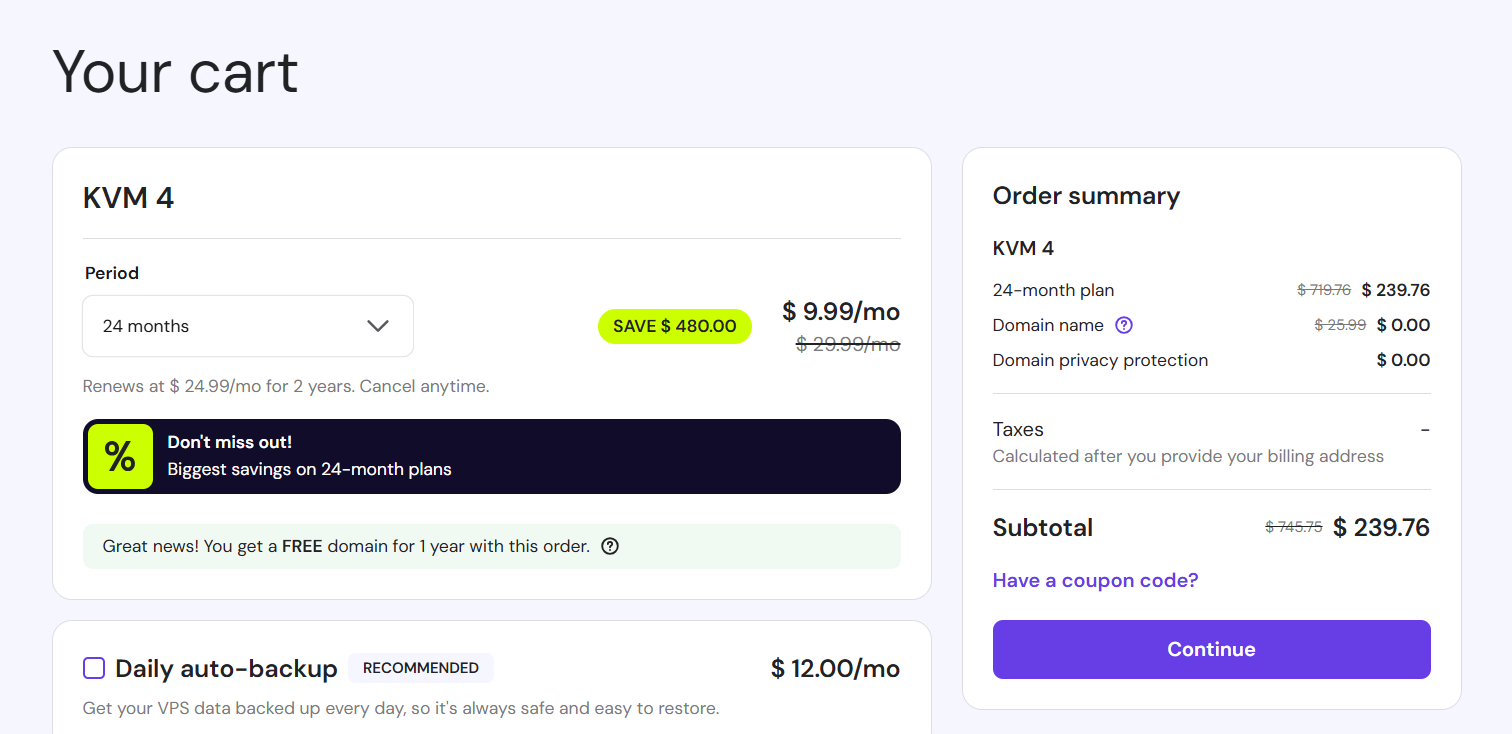
For most teams self-hosting n8n, we recommend the Hostinger KVM 4 VPS plan.
At the time of writing, this plan costs $239.76 for 24 months, which comes down to roughly $9.99 per month, making it one of the most cost-effective ways to run production-grade automation infrastructure.
It provides enough CPU, memory, and storage to comfortably handle n8n workflows, including AI orchestration workloads, without overpaying for unused resources.
If you decide to go this route, using our affiliate link helps support our work and allows us to continue publishing detailed, practical guides like this, at no additional cost to you.
Setting up Hostinger N8N
Setting up n8n on your own hosting is well documented, and there are plenty of clear walkthroughs available on YouTube if you prefer a visual guide. In many cases, you can even select an n8n pre-installed option directly during checkout with your hosting provider, which removes most of the initial setup work.
The most important thing to keep in mind is ongoing maintenance: n8n runs via Docker, so updates should be handled through Docker as well.
If you are unsure how to do this, modern LLMs like ChatGPT, Gemini, Claude, or Grok can walk you through the process step by step, and if you use Cursor AI, as we do, everything you need is available directly inside your development environment.
Keeping your self-hosted n8n instance up to date is critical, not only to access new features, but to ensure security patches are applied and known vulnerabilities are addressed promptly.
One critical rule when working with n8n is to never store credentials directly inside a node. Any API keys, tokens, or secrets placed in a node can be exposed through exports, logs, or shared workflows. Credentials should always be stored using n8n’s built-in Credentials system, which encrypts and manages them centrally. This is non-negotiable for security and is especially important when working with AI services, cloud APIs, and internal systems.
Preparing n8n for image & video workflows
Image as well as video workflows stress different parts of n8n than typical automations.
Plan for:
-
larger payloads (binary data),
-
longer execution times,
-
wait-and-poll patterns,
-
and retry logic.
Tune n8n accordingly:
-
Increase execution time limits if needed.
-
Ensure sufficient memory.
-
Avoid synchronous blocking when possible.
At this point, you have a secure, self-hosted automation layer that can safely talk to RunPod and HubSpot without exposing your internals to the internet.
That is the foundation.
Chapter 3 checklist
By now, you should have:
-
n8n running in your own environment
-
HTTPS and restricted access in place
-
A clear separation between editor access and webhook access
-
Secrets stored safely
-
Monitoring and backups enabled
Next, we move into the heart of the system.
Chapter 4
Building the n8n Workflow: From Prompt to Fully Branded Image
This chapter is the core of the system.
Not the model.
Not the GPU.
The workflow.
Here’s a tight, well-structured section you can drop directly under that intro. It keeps the tone grounded, practical, and aligned with what you’re actually demonstrating.
This chapter is not about building the most complex workflow possible. It is deliberately the opposite. The goal here is to show the power of combining RunPod and n8n by starting with a very simple, end-to-end workflow that works reliably and is easy to understand. In this example, the workflow does one thing well: it generates an image and applies a basic brand element, such as your logo or a short piece of text. That alone already demonstrates the core mechanics, orchestration, and cost control you need for production use.
This same pattern applies not only to images, but also to video, audio, or other AI workloads. Because RunPod handles execution in a serverless way, costs stay predictable and controllable, even when using advanced open models, instead of paying premium prices for closed APIs from providers like OpenAI or Gemini for every request. What you are reading here is intentionally a baseline workflow, not an attempt to solve every use case at once.
If you are starting out, this approach is critical. Get one simple workflow live, stable, and understood by the team. Once it is running, like the example shown on our website, you can extend it step by step with additional logic, templates, and automation. Starting with a highly complex workflow almost always leads to delays, confusion, and abandoned projects. Most AI initiatives fail not because the technology is weak, but because they try to do too much too early. Start simple, keep costs low, deliver one working system, and build from there.
If you start by injecting HubSpot CRM data, user attributes, and multiple data sources into the workflow from day one, things become messy very quickly. Complexity increases, debugging becomes harder, and progress slows down. This guide deliberately follows the KISS principle: Keep It Simple, Stupid. Start with a minimal workflow that is easy to reason about, easy to operate, and easy to explain. Once that foundation is solid and running in production, you can layer in CRM data, personalization, and more advanced logic with confidence instead of chaos.
If you get this right, everything else becomes replaceable. Models can change. Infrastructure can move. The workflow is where intent becomes output.
The mental model: one request, one controlled journey
Your workflow does exactly one thing:
Take a short description and return a finished, on-brand image.
No branching creativity.
No optional chaos.
The logic is linear, explicit, and repeatable.
At a high level, the workflow has five phases:
-
Receive the request
-
Generate the image
-
Wait for completion
-
Apply brand rules
-
Return the final asset
Let’s walk through them. First here is an overview:
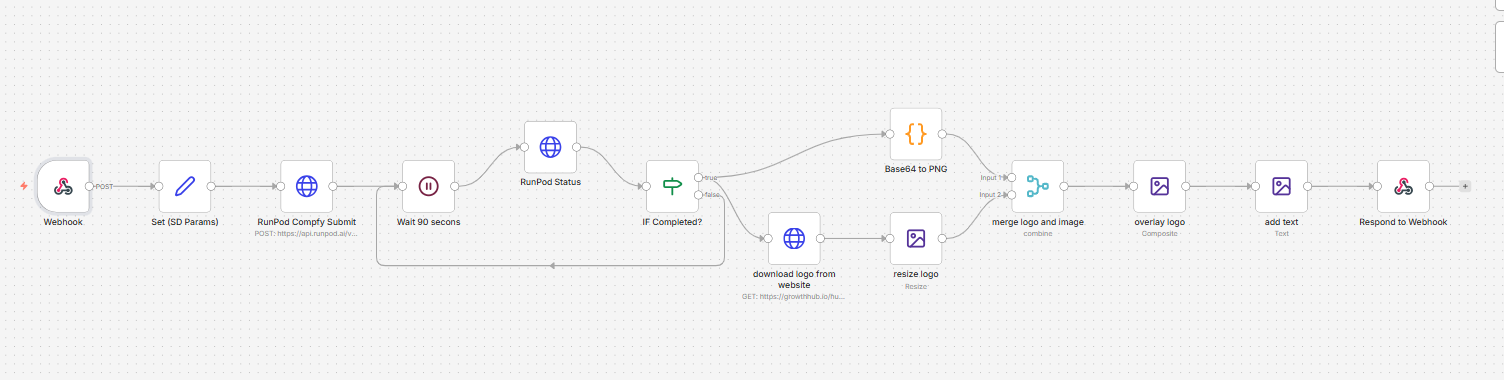
Overview: a simple, end-to-end AI image workflow
This workflow shows a complete, minimal example of how to generate an image using RunPod and n8n, then turn that raw output into a branded asset. A prompt is received through a webhook, sent to a RunPod serverless endpoint for image generation, and processed asynchronously until the image is ready. Once completed, the workflow converts the generated output into a usable image, applies a logo and optional text overlay, and returns the final result to the user. The purpose of this workflow is not complexity, but clarity: it demonstrates how orchestration, branding, and cost-efficient AI execution come together in a single, reliable pipeline that can later be extended to more advanced use cases.
Step-by-step: explaining the workflow node by node
1. Webhook
This is the entry point of the workflow. It receives a request from your website, intranet, or application containing the prompt or basic input parameters. Every execution of the workflow starts here.
2. Set (SD Params)
This node prepares and normalizes the input data. It structures the prompt and any default parameters so the rest of the workflow receives clean, predictable values.
3. RunPod Comfy Submit
Here, the workflow submits a job to the RunPod serverless endpoint running ComfyUI. Instead of waiting for the image to be generated synchronously, it starts an asynchronous job and receives a job ID in return.
4. Wait (90 seconds)
This node pauses the workflow to give RunPod time to process the request. Serverless image generation is asynchronous by design, so waiting is required before checking job status.
5. RunPod Status
The workflow checks the status of the submitted job using the job ID. It determines whether the image generation has finished or is still running.
6. IF Completed?
This conditional node decides what happens next. If the job is not completed yet, the workflow loops back to the wait step. If the job is completed, the workflow continues.
7. Base64 to PNG
Once the job is complete, the generated image is returned as base64 data. This node converts that data into a real PNG file that can be processed further.
8. Download logo from website
The workflow fetches the company logo from a fixed, trusted URL. This ensures branding is consistent and not dependent on user input.
9. Resize logo
The logo is resized to a predefined format so it fits cleanly on every generated image without manual adjustment.
10. Merge logo and image
This node combines the generated image and the resized logo into a single image stream, preparing it for compositing.
11. Overlay logo
The logo is placed at a fixed position on the image. This enforces brand consistency and removes any need for manual design work.
12. Add text
Optional text, such as a headline or short label, is added using predefined rules for font, size, and placement.
13. Respond to Webhook
The final, branded image is returned to the caller as the response. From the user’s perspective, this is simply a generated image ready for download or use.
Here is the complete workflow for you to copy paste it into N8N:
(just copy it and paste it into an empty N8N canvas)
<code> {
  "nodes": [
    {
      "name": "Webhook",
      "type": "n8n-nodes-base.webhook",
      "typeVersion": 2,
      "position": [-32, -272],
      "parameters": {
        "httpMethod": "POST",
        "path": "your-webhook-path",
        "responseMode": "responseNode"
      }
    },
    {
      "name": "Set (SD Params)",
      "type": "n8n-nodes-base.set",
      "typeVersion": 2,
      "position": [192, -272],
      "parameters": {
        "keepOnlySet": true,
        "values": {
          "string": [
            {
              "name": "prompt",
              "value": "="
            }
          ]
        }
      }
    },
    {
      "name": "RunPod Comfy Submit",
      "type": "n8n-nodes-base.httpRequest",
      "typeVersion": 4,
      "position": [416, -272],
      "parameters": {
        "method": "POST",
        "url": "https://api.runpod.ai/v2/YOUR_ENDPOINT_ID/run",
        "authentication": "genericCredentialType",
        "genericAuthType": "httpHeaderAuth",
        "sendBody": true,
        "specifyBody": "json",
        "jsonBody": {
          "input": {
            "workflow": {
              "model": "YOUR_COMFYUI_WORKFLOW_JSON_HERE"
            }
          }
        }
      }
    },
    {
      "name": "Wait 90 seconds",
      "type": "n8n-nodes-base.wait",
      "typeVersion": 1,
      "position": [640, -272],
      "parameters": {
        "amount": 90,
        "unit": "seconds"
      }
    },
    {
      "name": "RunPod Status",
      "type": "n8n-nodes-base.httpRequest",
      "typeVersion": 4,
      "position": [864, -344],
      "parameters": {
        "method": "GET",
        "url": "https://api.runpod.ai/v2/YOUR_ENDPOINT_ID/status/",
        "authentication": "genericCredentialType",
        "genericAuthType": "httpHeaderAuth"
      }
    },
    {
      "name": "IF Completed?",
      "type": "n8n-nodes-base.if",
      "typeVersion": 2,
      "position": [1088, -272],
      "parameters": {
        "conditions": {
          "string": [
            {
              "value1": "=",
              "operation": "equal",
              "value2": "COMPLETED"
            }
          ]
        }
      }
    },
    {
      "name": "Base64 to PNG",
      "type": "n8n-nodes-base.code",
      "typeVersion": 2,
      "position": [1536, -368],
      "parameters": {
        "jsCode": "// Convert base64 image output into PNG binary\nconst output = $json.output;\nlet b64 = output?.images?.[0] || output?.message;\nif (!b64) throw new Error('No image data found');\nif (b64.includes('base64,')) b64 = b64.split('base64,')[1];\nconst buffer = Buffer.from(b64, 'base64');\nreturn [{ binary: { data: await this.helpers.prepareBinaryData(buffer, 'image.png', 'image/png') } }];"
      }
    },
    {
      "name": "Download logo",
      "type": "n8n-nodes-base.httpRequest",
      "typeVersion": 4,
      "position": [1312, -176],
      "parameters": {
        "url": "https://yourdomain.com/your-logo.png",
        "options": {
          "response": {
            "responseFormat": "file",
            "outputPropertyName": "logo_data"
          }
        }
      }
    },
    {
      "name": "Resize logo",
      "type": "n8n-nodes-base.editImage",
      "typeVersion": 1,
      "position": [1536, -176],
      "parameters": {
        "operation": "resize",
        "dataPropertyName": "logo_data",
        "width": 600,
        "height": 200
      }
    },
    {
      "name": "Merge image and logo",
      "type": "n8n-nodes-base.merge",
      "typeVersion": 3,
      "position": [1760, -272],
      "parameters": {
        "mode": "combine",
        "combineBy": "combineByPosition"
      }
    },
    {
      "name": "Overlay logo",
      "type": "n8n-nodes-base.editImage",
      "typeVersion": 1,
      "position": [1984, -272],
      "parameters": {
        "operation": "composite",
        "dataPropertyNameComposite": "logo_data",
        "positionX": 212,
        "positionY": 890
      }
    },
    {
      "name": "Add text",
      "type": "n8n-nodes-base.editImage",
      "typeVersion": 1,
      "position": [2208, -272],
      "parameters": {
        "operation": "text",
        "text": "YOUR HEADLINE",
        "fontSize": 45,
        "positionX": 212,
        "positionY": 106
      }
    },
    {
      "name": "Respond to Webhook",
      "type": "n8n-nodes-base.respondToWebhook",
      "typeVersion": 1,
      "position": [2432, -272],
      "parameters": {
        "respondWith": "binary"
      }
    }
  ],
  "connections": {}
} </code>
"nodes": [
{
"name": "Webhook",
"type": "n8n-nodes-base.webhook",
"typeVersion": 2,
"position": [-32, -272],
"parameters": {
"httpMethod": "POST",
"path": "your-webhook-path",
"responseMode": "responseNode"
}
},
{
"name": "Set (SD Params)",
"type": "n8n-nodes-base.set",
"typeVersion": 2,
"position": [192, -272],
"parameters": {
"keepOnlySet": true,
"values": {
"string": [
{
"name": "prompt",
"value": "="
}
]
}
}
},
{
"name": "RunPod Comfy Submit",
"type": "n8n-nodes-base.httpRequest",
"typeVersion": 4,
"position": [416, -272],
"parameters": {
"method": "POST",
"url": "https://api.runpod.ai/v2/YOUR_ENDPOINT_ID/run",
"authentication": "genericCredentialType",
"genericAuthType": "httpHeaderAuth",
"sendBody": true,
"specifyBody": "json",
"jsonBody": {
"input": {
"workflow": {
"model": "YOUR_COMFYUI_WORKFLOW_JSON_HERE"
}
}
}
}
},
{
"name": "Wait 90 seconds",
"type": "n8n-nodes-base.wait",
"typeVersion": 1,
"position": [640, -272],
"parameters": {
"amount": 90,
"unit": "seconds"
}
},
{
"name": "RunPod Status",
"type": "n8n-nodes-base.httpRequest",
"typeVersion": 4,
"position": [864, -344],
"parameters": {
"method": "GET",
"url": "https://api.runpod.ai/v2/YOUR_ENDPOINT_ID/status/",
"authentication": "genericCredentialType",
"genericAuthType": "httpHeaderAuth"
}
},
{
"name": "IF Completed?",
"type": "n8n-nodes-base.if",
"typeVersion": 2,
"position": [1088, -272],
"parameters": {
"conditions": {
"string": [
{
"value1": "=",
"operation": "equal",
"value2": "COMPLETED"
}
]
}
}
},
{
"name": "Base64 to PNG",
"type": "n8n-nodes-base.code",
"typeVersion": 2,
"position": [1536, -368],
"parameters": {
"jsCode": "// Convert base64 image output into PNG binary\nconst output = $json.output;\nlet b64 = output?.images?.[0] || output?.message;\nif (!b64) throw new Error('No image data found');\nif (b64.includes('base64,')) b64 = b64.split('base64,')[1];\nconst buffer = Buffer.from(b64, 'base64');\nreturn [{ binary: { data: await this.helpers.prepareBinaryData(buffer, 'image.png', 'image/png') } }];"
}
},
{
"name": "Download logo",
"type": "n8n-nodes-base.httpRequest",
"typeVersion": 4,
"position": [1312, -176],
"parameters": {
"url": "https://yourdomain.com/your-logo.png",
"options": {
"response": {
"responseFormat": "file",
"outputPropertyName": "logo_data"
}
}
}
},
{
"name": "Resize logo",
"type": "n8n-nodes-base.editImage",
"typeVersion": 1,
"position": [1536, -176],
"parameters": {
"operation": "resize",
"dataPropertyName": "logo_data",
"width": 600,
"height": 200
}
},
{
"name": "Merge image and logo",
"type": "n8n-nodes-base.merge",
"typeVersion": 3,
"position": [1760, -272],
"parameters": {
"mode": "combine",
"combineBy": "combineByPosition"
}
},
{
"name": "Overlay logo",
"type": "n8n-nodes-base.editImage",
"typeVersion": 1,
"position": [1984, -272],
"parameters": {
"operation": "composite",
"dataPropertyNameComposite": "logo_data",
"positionX": 212,
"positionY": 890
}
},
{
"name": "Add text",
"type": "n8n-nodes-base.editImage",
"typeVersion": 1,
"position": [2208, -272],
"parameters": {
"operation": "text",
"text": "YOUR HEADLINE",
"fontSize": 45,
"positionX": 212,
"positionY": 106
}
},
{
"name": "Respond to Webhook",
"type": "n8n-nodes-base.respondToWebhook",
"typeVersion": 1,
"position": [2432, -272],
"parameters": {
"respondWith": "binary"
}
}
],
"connections": {}
} </code>
Step 1: Webhook input (your single entry point)
Create a Webhook node.
-
Method: POST
-
Response mode: Respond manually
-
Authentication: handled outside n8n (SSO, intranet, private HubSpot page)
The webhook payload should be intentionally small. Do not accept free-form everything.
At minimum:
-
prompt(string) -
template(enum, for exampleblog_header,linkedin_square,hiring_post) -
optional:
headline(string)
This is your first governance layer. If it is not accepted here, it does not exist downstream.
Step 2: Normalize inputs (remove ambiguity early)
Add a Set node.
This node does two things:
-
Renames fields to consistent internal variables
-
Applies defaults where needed
For example:
-
Trim prompt length
-
Inject a template-specific prefix
-
Attach a predefined negative prompt
This is where you stop employees from reinventing the wheel.
They provide intent.
You provide structure.
Step 3: Submit the image generation job to RunPod
Add an HTTP Request node to submit a job to your RunPod serverless endpoint.
-
Method: POST
-
URL:
/run -
Authentication: RunPod API key from n8n credentials
The body contains your predefined image workflow:
-
fixed resolution,
-
fixed sampler,
-
fixed steps,
-
injected prompt,
-
injected negative prompt,
-
randomized seed.
Important rule:
Never let users control technical generation parameters.
This keeps cost, quality, and consistency predictable.
The response returns a job ID. Save it.
Step 4: Wait and poll (do not block blindly)
Add a Wait node (for example 60–90 seconds).
Then add another HTTP Request node:
-
Method: GET
-
URL:
/status/{job_id}
Add an IF node:
-
If status is
COMPLETED, continue. -
If not, loop back to the Wait node.
This polling pattern is deliberate:
-
It avoids timeouts.
-
It makes failures observable.
-
It keeps execution logic explicit.
If a job fails, return a clean error message. Do not silently retry forever.
Step 5: Convert the output into a real image
Once completed, RunPod returns base64 image data.
Add a Code node to:
-
extract the base64 string,
-
decode it,
-
convert it into a binary PNG.
At this point, you have an image.
It is not yet a brand asset.
That distinction matters.
Step 6: Apply the brand overlay (this is the enterprise moment)
This is where most AI demos stop.
This is where your system starts.
Logo handling
-
Download the logo from a canonical URL
-
Resize it to a fixed size
-
Enforce aspect ratio and padding
No employee should ever upload a logo manually.
Image merge
-
Combine the generated image and logo into a single stream
-
Overlay the logo at a fixed coordinate
-
Respect safe margins
Consistency beats creativity here.
Text overlay
-
Use a locked font
-
Set max line length
-
Enforce text size rules
-
Truncate or wrap predictably
Text is optional. Rules are not.
This guarantees that every output looks intentional, even when the prompt is vague.
Step 7: Respond with a finished asset
Add a Respond to Webhook node.
-
Response type: Binary
-
File name: derived from template and timestamp
-
MIME type: image/png
From the frontend’s perspective, this is just a file download.
From the organization’s perspective, this is a governed content pipeline.
Reliability upgrades you should add early
Before anyone outside your team uses this:
-
Add retry limits on polling.
-
Log every execution with:
-
user identifier,
-
template,
-
timestamp.
-
-
Add rate limits per user or team.
-
Add a fallback message if generation fails.
These are not “nice to haves.”
They are how internal tools earn trust.
Chapter 4 checklist
You now have:
-
A single controlled webhook entry point
-
Structured prompts via templates
-
Serverless image generation via RunPod
-
Polling-based job handling
-
Automated brand overlays
-
A clean PNG returned to the user
Next, we move from backend to adoption.
Chapter 5
Publishing the Widget On Your Intranet
Internal tools fail for one reason more than any other.
People forget where they are.
If generating an image requires opening a new app, logging in again, or asking IT for access, adoption collapses. The goal of this chapter is simple: put the image workflow exactly where HubSpot users already work, without exposing it to the public internet.
The rule: internal by default
In production, this widget should not be publicly reachable.
Not because of fear.
Because of discipline.
Public endpoints invite:
-
anonymous usage,
-
uncontrolled costs,
-
prompt abuse,
-
and awkward compliance questions.
Your demo page can be public.
Your production workflow should not be.
Option 1: HubSpot private content (recommended)
For HubSpot-centric organizations, this is the cleanest solution.
HubSpot allows you to create pages that are:
-
accessible only to logged-in users,
-
restricted by user groups,
-
protected by SSO.
You embed the widget directly on a private page:
-
a simple form field for the prompt,
-
a template selector,
-
a Generate button,
-
and an image preview/download area.
The frontend calls your n8n webhook through:
-
an internal gateway, or
-
a restricted endpoint protected by auth headers.
From the user’s perspective, this feels native. No context switch. No new tool.
Option 2: Company intranet
If your organization already has an intranet:
-
embed the widget as a standalone page,
-
or as a module inside an existing portal.
The same rules apply:
-
authenticated users only,
-
no direct exposure of API keys,
-
traffic routed through controlled access.
This option works well for companies with strong internal IT ownership.
Widget design that actually gets used
Resist the urge to over-design.
The most effective widgets have:
-
one text input,
-
one template dropdown,
-
one action button.
Templates do the heavy lifting.
One practical advantage of this approach is that n8n makes it trivial to duplicate workflows. Instead of cramming multiple options into a single widget, you can copy this workflow and adapt it for a very specific use case, for example one workflow for LinkedIn posts, one for Instagram visuals, one for TikTok thumbnails, or any other narrowly defined format. Each copy can slightly transform the prompt, adjust image dimensions, or apply channel-specific rules using a simple code or set node, without changing the core logic. This keeps each widget focused and easy to use. The best results come from designing one workflow for one clear task, rather than offering users a single interface with too many choices and too much freedom.
Examples:
-
Blog header
-
LinkedIn square
-
Hiring announcement
-
Ad creative
Each template maps to:
-
a predefined prompt prefix,
-
fixed dimensions,
-
fixed brand overlay rules.
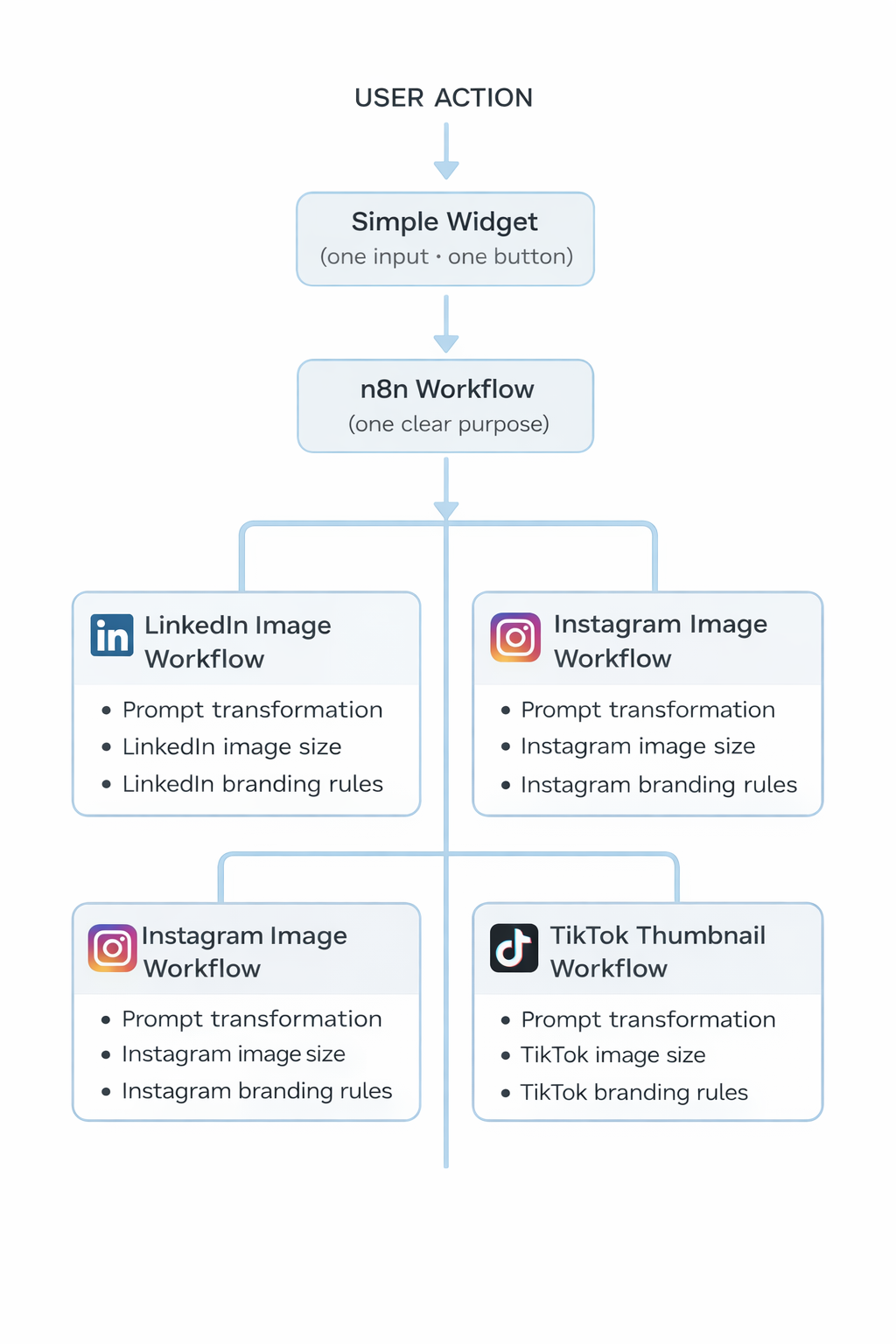
Users should feel productive, not creative.
Prompt guidance without prompt freedom
This is a subtle but important design choice.
Instead of a blank input, provide:
-
placeholder text with examples,
-
template-specific hints,
-
character limits.
For example:
“Describe the topic in one sentence. Do not include design instructions.”
This keeps outputs consistent and reduces retries.
Handling output in the UI
Once the image is returned:
-
show a preview,
-
provide a clear download button,
-
name the file predictably.
Optional but valuable:
-
generate multiple variations per request,
-
allow regeneration with the same prompt,
-
store generated assets temporarily for reuse.
Avoid building an asset manager here. Keep it focused.
The public demo pattern
Your public-facing page, like the GrowthHub example, serves a different purpose.
It should:
-
demonstrate capability,
-
show output quality,
-
educate prospects.
It should not:
-
run on the same endpoint,
-
allow unlimited usage,
-
expose internal templates.
Separate the demo from production at the infrastructure level, not just in the UI.
Chapter 5 checklist
At this stage, you should have:
-
A non-public widget embedded in HubSpot or your intranet
-
Authentication and access control in place
-
Clear, limited UI inputs
-
Template-driven generation
-
A separate public demo environment
Next, we address the concerns that inevitably come from IT, legal, and leadership.
Chapter 6
Brand Safety, Model Safety, and Governance (Without Slowing Everyone Down)
Every internal AI system eventually faces the same three questions:
-
“Is this on-brand?”
-
“Is this safe?”
-
“Who is responsible when something goes wrong?”
Most teams answer these too late. By then, the tool is already popular, undocumented, and politically untouchable.
This chapter is about designing safety into the workflow, so you do not have to rely on policies, training sessions, or hope.
Brand safety: turning guidelines into code
Brand guidelines usually fail because they are passive. They describe what should happen. They do not enforce it.
Your image workflow should enforce brand rules mechanically.
Lock the layout
Brand safety starts with layout, not colors.
-
Fix logo size and position.
-
Define safe margins.
-
Enforce consistent text placement.
If the layout is correct, most images will feel on-brand even before color or style enters the picture.
Employees should never choose:
-
where the logo goes,
-
how big it is,
-
or how close it sits to the edge.
Those decisions belong to the system.
Lock the typography
Text in images is where brands quietly break.
Fix:
-
font family,
-
font weight,
-
maximum characters per line,
-
maximum number of lines.
If text does not fit, truncate or wrap predictably. Do not resize dynamically based on content. That path leads to visual chaos.
Control style through templates, not taste
Instead of letting people describe styles freely, encode them.
Each template includes:
-
a style prefix,
-
a color bias,
-
a negative prompt.
For example:
-
“clean, modern, professional, neutral lighting”
-
negative: “cartoon, comic, hand-drawn, neon, vaporwave”
This does more for brand consistency than any PDF ever will.
Model safety: controlling what the model is allowed to do
Image models are powerful, but literal.
They will generate exactly what they are allowed to generate.
Your job is to define the boundaries.
Prompt filtering at the door
Before sending a prompt to the model:
-
block obviously unsafe categories,
-
block competitor names if needed,
-
block trademarked styles you do not want.
This does not need to be perfect. It needs to be intentional.
Most misuse is accidental, not malicious.
Negative prompts as guardrails
Negative prompts are not just about image quality. They are a safety tool.
Use them to suppress:
-
explicit content,
-
violence,
-
political imagery,
-
hyper-stylized aesthetics.
This keeps outputs boring in the best possible way.
Tiered access by role
Not everyone needs the same freedom.
-
Marketing ops may access advanced templates.
-
HR gets a restricted, “safe mode” set.
-
General employees get opinionated defaults only.
Governance through access is faster than governance through review.
Compliance: boring, necessary, and manageable
For most SMB and large SMB organizations, compliance questions are practical, not philosophical.
Focus on three things.
Data flow clarity
Be able to answer:
-
What data is sent to the model?
-
Where does it go?
-
Is it stored?
-
For how long?
In this setup:
-
prompts are short,
-
images are generated transiently,
-
storage is optional and controlled.
Document this once. Reuse it often.
Logging with intent
Log:
-
who generated what,
-
when,
-
using which template.
Do not log:
-
raw prompts indefinitely,
-
unnecessary personal data.
Logs are for accountability, not surveillance.
Retention and deletion
Decide early:
-
whether generated images are stored,
-
how long they live,
-
who can access them.
Default to short retention. Re-generate when needed.
Governance that scales with use
The mistake most teams make is introducing manual review too early.
Review does not scale. Defaults do.
Good governance looks like:
-
fixed templates,
-
constrained inputs,
-
automated enforcement,
-
clear ownership.
Human review is reserved for:
-
new templates,
-
new models,
-
edge cases.
Everything else flows.
Chapter 6 checklist
You now have:
-
Brand rules enforced in code
-
Prompt and style constraints
-
Role-based access
-
Clear data flow and retention logic
-
Governance that does not slow teams down
Next, we tackle the question leadership always asks last, but should ask first.
Let’s close the loop with the question that decides whether this survives procurement.
Chapter 7
Cost Effectiveness: Why This Is Cheaper Than It Looks (and More Expensive If You Don’t Do It)
AI image generation feels expensive until you calculate what you are already paying.
Not in invoices.
In time, rework, fragmentation, and quiet inefficiency.
This chapter breaks down where the real costs live, how this architecture controls them, and which levers actually matter.
The hidden cost of “free” tools
Most teams underestimate visual production costs because they are diffuse.
A typical internal flow looks like this:
-
Someone experiments with prompts.
-
Someone regenerates three times.
-
Someone fixes branding manually.
-
Someone asks for changes.
-
Someone stores the asset “somewhere.”
No line item.
No dashboard.
No ownership.
The cost is paid in:
-
employee time,
-
designer interruptions,
-
inconsistent outputs,
-
and duplicated work.
This workflow collapses all of that into a single, predictable operation.
Understanding what you actually pay for
With a serverless GPU setup, costs are driven by a small number of variables.
The primary cost drivers
-
Image resolution
-
Number of sampling steps
-
Model complexity
-
Number of images per request
-
Retry behavior
Everything else is noise.
If you fix these variables, you fix your cost envelope.
That is why users never touch them.
Why serverless is the right default for HubSpot teams
Internal image usage is bursty.
Campaign launches spike.
Hiring pushes spike.
Everything else is quiet.
Serverless pricing matches that reality:
-
no idle GPU costs,
-
no overprovisioning,
-
no guessing peak capacity.
You pay when someone clicks Generate.
You do not pay while they think.
For SMB and large SMB teams, this almost always beats dedicated infrastructure.
The biggest cost saver: fewer iterations
Most image generation costs do not come from generation itself.
They come from retries.
Every “try again” multiplies cost.
This workflow reduces retries by:
-
fixing style upfront,
-
using templates instead of blank prompts,
-
enforcing brand overlays automatically,
-
producing images that are immediately usable.
One good image is cheaper than four experiments.
Practical cost controls you should enable early
These are the knobs that actually work.
Fix resolution
Start with one resolution per template.
Upscale later if needed.
Higher resolution does not equal better outcomes. It equals higher GPU time.
One image per request
Do not generate variants by default.
Add a “Generate variations” option later, explicitly. Make cost visible.
Limit retries
If a job fails, fail cleanly. Do not loop endlessly.
Retries hide problems and inflate bills.
Quotas by role or team
Marketing may need more volume. HR usually does not.
Set soft limits. Review usage monthly.
Comparing real alternatives
Let’s be blunt.
Designer-only workflow
-
High quality
-
High cost
-
Slow
-
Does not scale for volume
SaaS AI tools per user
-
Fragmented prompts
-
No brand enforcement
-
Hard to govern
-
Procurement overhead
Internal image workflow
-
Predictable output
-
Centralized control
-
Transparent costs
-
Reusable across teams
You are not replacing designers.
You are removing low-value visual labor.
That distinction matters politically and financially.
The cost curve over time
The first month feels expensive.
Then something happens.
-
Prompts stabilize.
-
Templates improve.
-
Retries drop.
-
Reuse increases.
Costs flatten. Value compounds.
This is the opposite of most SaaS tools, which get more expensive as usage grows.
Chapter 7 checklist
You should now understand:
-
What actually drives image generation cost
-
Why serverless aligns with HubSpot usage patterns
-
Which levers reduce spend immediately
-
Why governance and cost control reinforce each other
At this point, you have a complete system:
-
infrastructure,
-
orchestration,
-
UI,
-
governance,
-
and cost control.
What you do with it next is an organizational choice, not a technical one.

Join the Conversation
Share your thoughts and connect with other readers